Related Support Center Articles
| Item Locations | R365 Import Tool |
| Item Costing | Recipe Costing |
Overview
Item Locations allow you to separate out costing of Purchased Items and Recipes into the distinct Locations to help with regional Menu Pricing and accurate Location Specific P&Ls.
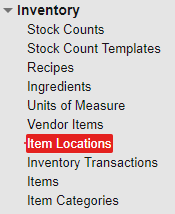
Item Locations are located in the Inventory subsection of the Operations Module.
Creating Item Locations
Item Locations can be created using the following methods:
- Manually:
- Hover over the 'Item' Menu in the top ribbon, then the 'Setup' submenu, and select 'New Item Location
- Via Template - Item Locations can be created using two different templates and the import tool.
- The first being the 'Item Locations' template
- The second being the 'Purchased Item template
- Note: when imported through the Purchased Item Template, an Item Location will be auto-created for every Location
- Automatically:
- Open the Purchased Item where you will be creating Item Locations, then navigate to the 'Item Locations' tab. Click the 'Create for All Locations' toggle to automatically create an Item Location record for each Location
When Item Locations are auto-created (either via the Purchased Item Template, or the Toggle on the Purchased Item Record), they will use the Inventory U of M value and Inventory Cost on the Purchased Item record. Both of these values can be updated manually or with an Item Location Update Import.
To reduce any extra work, we recommend that you review your Purchased Item list for accuracy before using either auto-create method.
Item Location Record
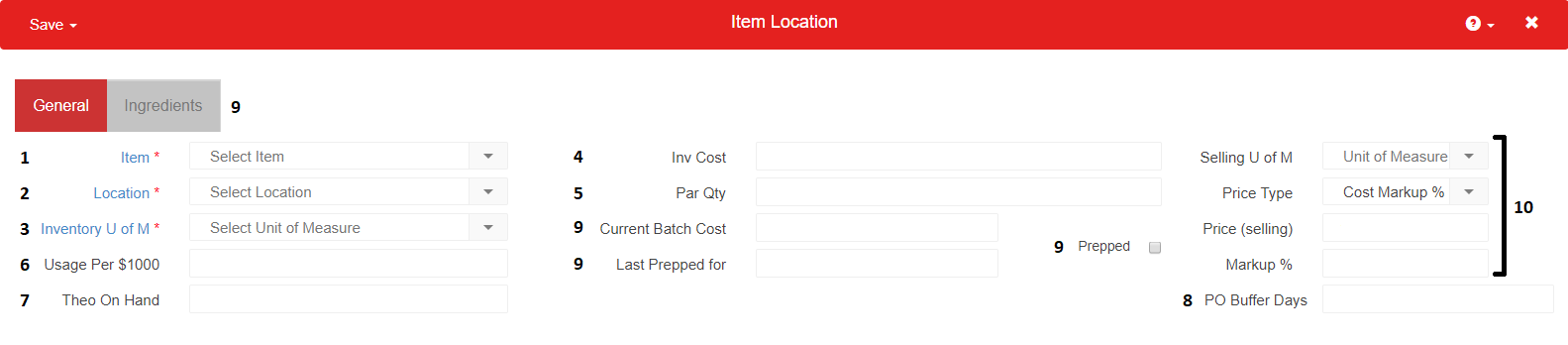
- Item - The Purchased Item the Item Location is linked to
- Location - The Restaurant Location the Item Location is linked to
- Inventory UofM - the first Inventory Unit this Location uses on its count sheet
- Note: this UofM can be different from the Inventory UofM found on the Purchased Item record. This Inventory UofM will override the one from the Purchase Item itself
- Cost - The cost of the Inventory UofM in this location specifically, based on the Cost Update Method on the Purchased Item itself. The next Lesson will cover Item Location Costing in more detail
- Par Qty - the par level set here will be displayed on Purchase Orders placed for this Location.
- Usage Per $1000 - This calculated field shows the amount of product, in terms of the Inventory UofM, used per $1000 in sales over the last 90 days. This value is used in calculating suggested Purchase and Prep quantities on the Purchase Orders and Prep features in R365
- Theo On Hand - this value displays the Theoretical amount of this item left on the shelf, in terms of Inventory UofM
- Note: this is based on the Actual Usage per $1000 and not on Sales Mix data
- PO Buffer Days: This value represents the number of extra days this item needs to be added to the Ordering suggestion during Purchase Order creation. An example would be an item that needs to thaw for a full day and then marinate for an additional day. The PO Buffer Days would be set to 2 days for this example
- Recipe Item Locations Fields - when an Item Location Record is for a Recipe, these additional fields will appear:
- Ingredients tab - this tab contains the item locations for all included ingredients on this Recipe
- Current Batch Cost - this is the current cost it would require to prepare this Recipe at this Location
- Last Prepped For - this is the most recent cost this recipe was approved for in the Prep Feature in R365
- Prepped Checkbox - this checkbox will be checked for each Recipe Item Location where the 'prepped' checkbox was initially checked on the source Recipe. When checked, this Recipe Item Location is available on the Prep log
- Selling UofM; Price Type; Price (Selling); Markup %: These are all Commissary specific functions and will be covered in the Commissary Course
Item Locations will change the way R365 costs out your items on both Stock Counts and Recipes - the next two lessons will explore that costing flow.