Related Support Center Articles
| Memorize an AP Invoice | Entering Invoices at Corporate |
Overview
AP Invoices can be memorized as transaction templates to be used again in the future. Additionally, Memorized Transactions can be scheduled with auto-recurrence settings for automatic transaction creation.
Step 1: Open the AP Invoice that will be Memorized
Update, or if creating a new AP Invoice enter, all of the details that will be included in the template. As a best practice, enter a value such as 'VendorName_template' as the Invoice Number to provide a reminder that the Invoice Number needs to be updated.
When a Memorized Transaction template is used, it will be created with a status of Unapproved. The necessary updates can be made before the transaction is Approved.
Step 2: Enter Name and Set Auto-Recurrence
Hover over 'Action' and select 'Memorize'. Enter a name for the template.
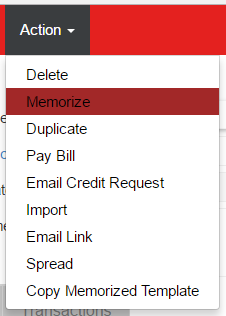
For templates that will only be used manually, click the 'Memorize' button to save the template and finish the memorize process
For templates that will be used with Auto-Recurrence, select the Auto-Recurrence Period.
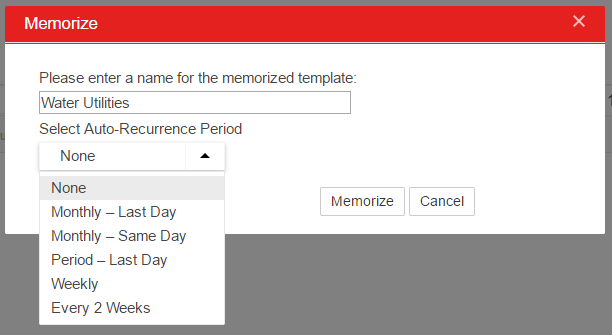
Available options include:
- Monthly Last Day - last day of every calendar month
- Monthly Same Day - same day of the month as the date on the transaction we are currently memorizing
- Period Last Day - last day of the fiscal period of the Location on the transaction
- Weekly - same day of each week as the date on the transaction
- Every 2 Weeks - same day every other week as the date on the transaction
Set how many 'Times to Repeat' the transaction, based on the Auto-Recurrence period. Optionally, set the 'Create X Days in Advance' value to have the transaction created X days before the transaction date
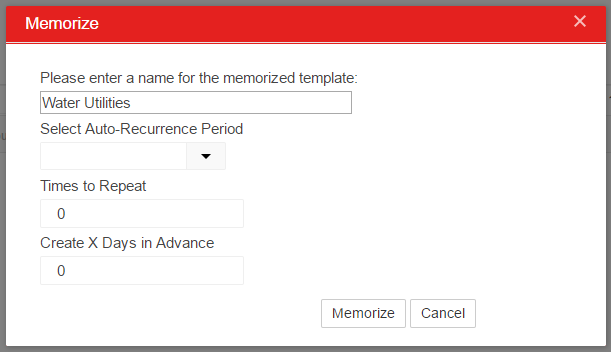
Step 3: Memorize
Click the 'Memorize' button to complete the memorize process
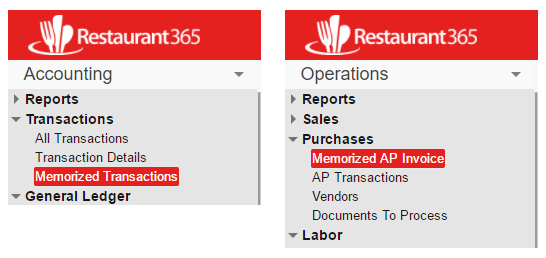
The saved template will now be available in the Memorized Transactions list in the Transactions section of the Accounting Module.
Manually Use a Memorized Transaction
To manually use a Memorized Transaction, navigate to the 'Memorized Transactions' list in the 'Transaction' section of the Accounting Module and the 'Memorized AP Invoice' list in the 'Purchases' section of the Operations Module
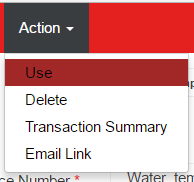
Open the memorized transaction, hover over the 'Action' menu and select 'Use'. Make the necessary updates, including Invoice Number, Date, and Amount, then Save or Approve the Invoice to complete the transaction.