Related Support Center Articles
| Recipe Item Record | Recipe Costing |
Creating a Yield Recipe for an item is one way to ensure accurate costing in regards to larger Recipe Items in Restaurant365. Individual items that need trimmed, cleaned, or cooked before being added to a larger recipe should have a Yield Recipe created for them.
Step 1: Create a Recipe Item Record
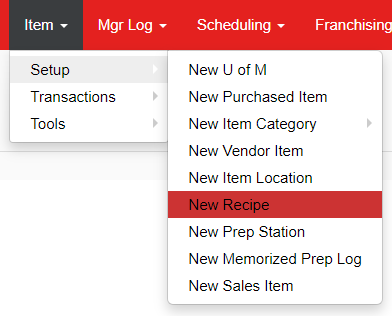
Hover over 'Item' in the top ribbon and then 'Setup' and click 'New Recipe'.
Step 2: Create a Naming Convention
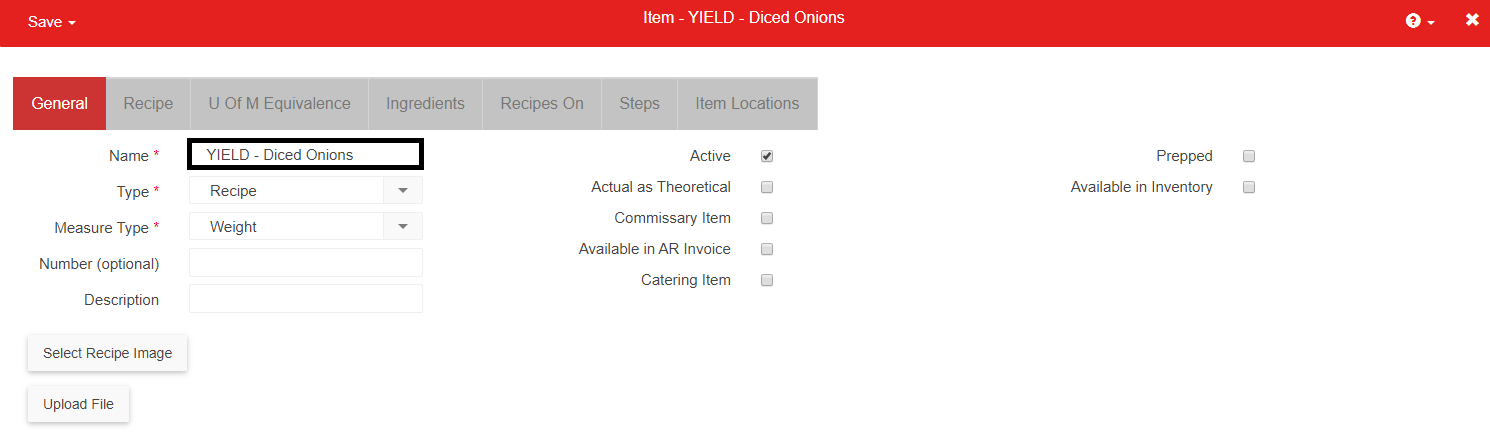
On the 'General' tab, select a naming convention that can be reflected in all Yield Recipes so that you can distinguish between different item records.
For this example, we'll use 'YIELD' in front of the item name.
Step 3: Select the Item
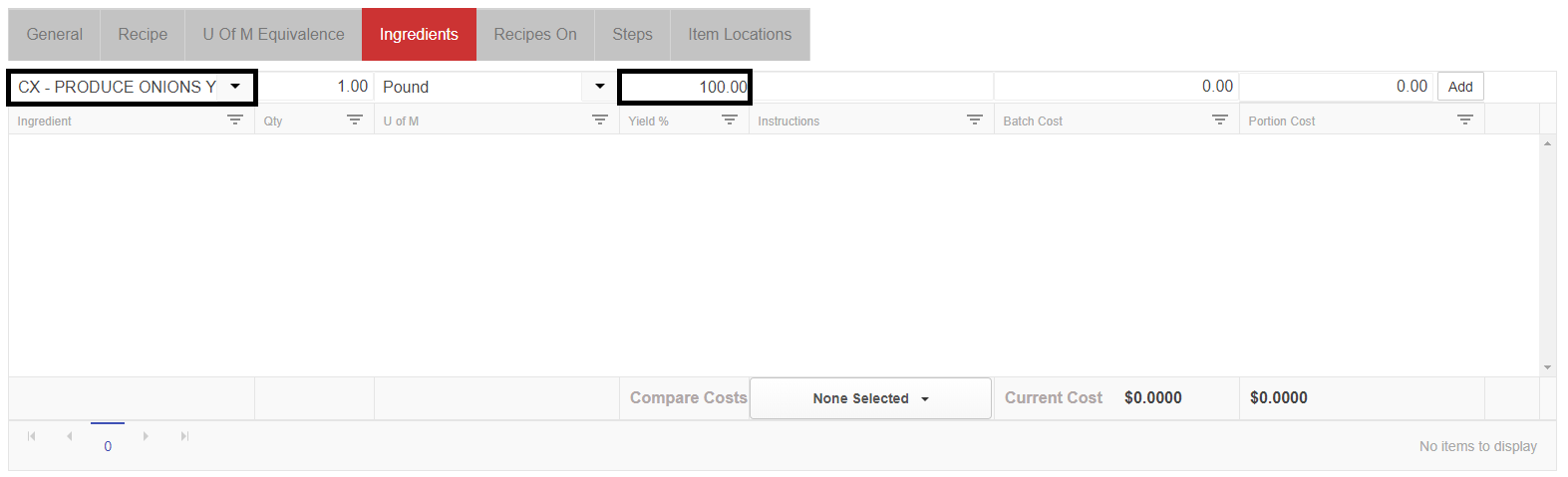
Navigate to the 'Ingredients' tab and select a previously-created Purchased Item or Recipe Item as an ingredient. The Unit of Measure will auto-populate once selected but can be updated manually. Define the quantity as needed to reflect the amount of the item going into the Recipe.
Step 4: Enter your Yield and Portion Sizes
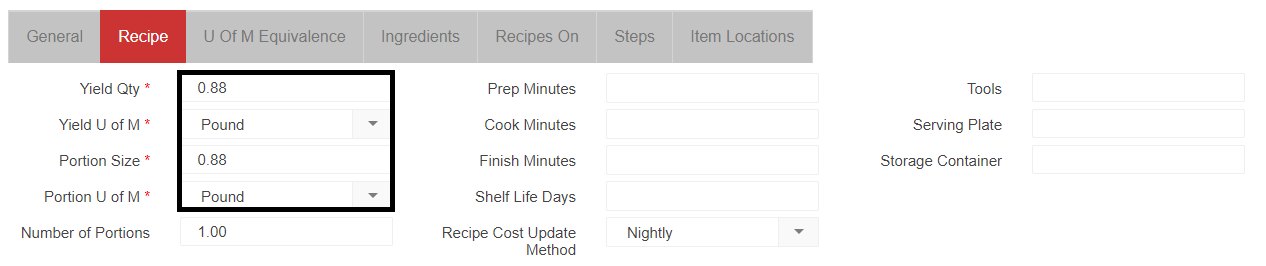
Navigate to the 'Recipe' tab and enter in the amount of the item remaining after it's been trimmed, cleaned, or cooked. In this example, a yellow onion is the item listed. After being trimmed of its coating, stem, and root, only 88% of a one pound onion would be used.
Enter in the yield value for both the 'Yield Qty' and 'Portion Size' fields and the corresponding Unit of Measure. When finished, ensure that you save the Recipe record.