Related Support Center Articles
| Mass DSS Review | Daily Sales Summary for the Restaurant Manager |
Overview
Mass DSS Review
In order to get the Sales and Labor data from the DSS to be approved and post to your General Ledger through the DSS Journal Entries, the DSS itself must first be approved. DSSs can be approved one by one, on the DSS record, or in batches using the Mass DSS Review screen. Hover over the 'Account' menu and select 'Mass DSS' to begin
Once the screen loads, set each Mass DSS parameter:
- Select the Locations that you will review and Approve
- Set the start date and end date
- Check or leave unchecked the 'Unapproved Only' checkbox to include only unapproved DSSs
- Click 'Get DSS' to load the DSSs in to the grid

The DSS tab will populate with each available DSS that meets the set parameters. If any Approved DSSs were included, you will notice that the 'Approved' checkbox has already been checked, indicating that this DSS is Approved and requires no additional attention. Each of the unchecked lines represent the Unapproved DSSs that you are here to review.
Missing DSS tab
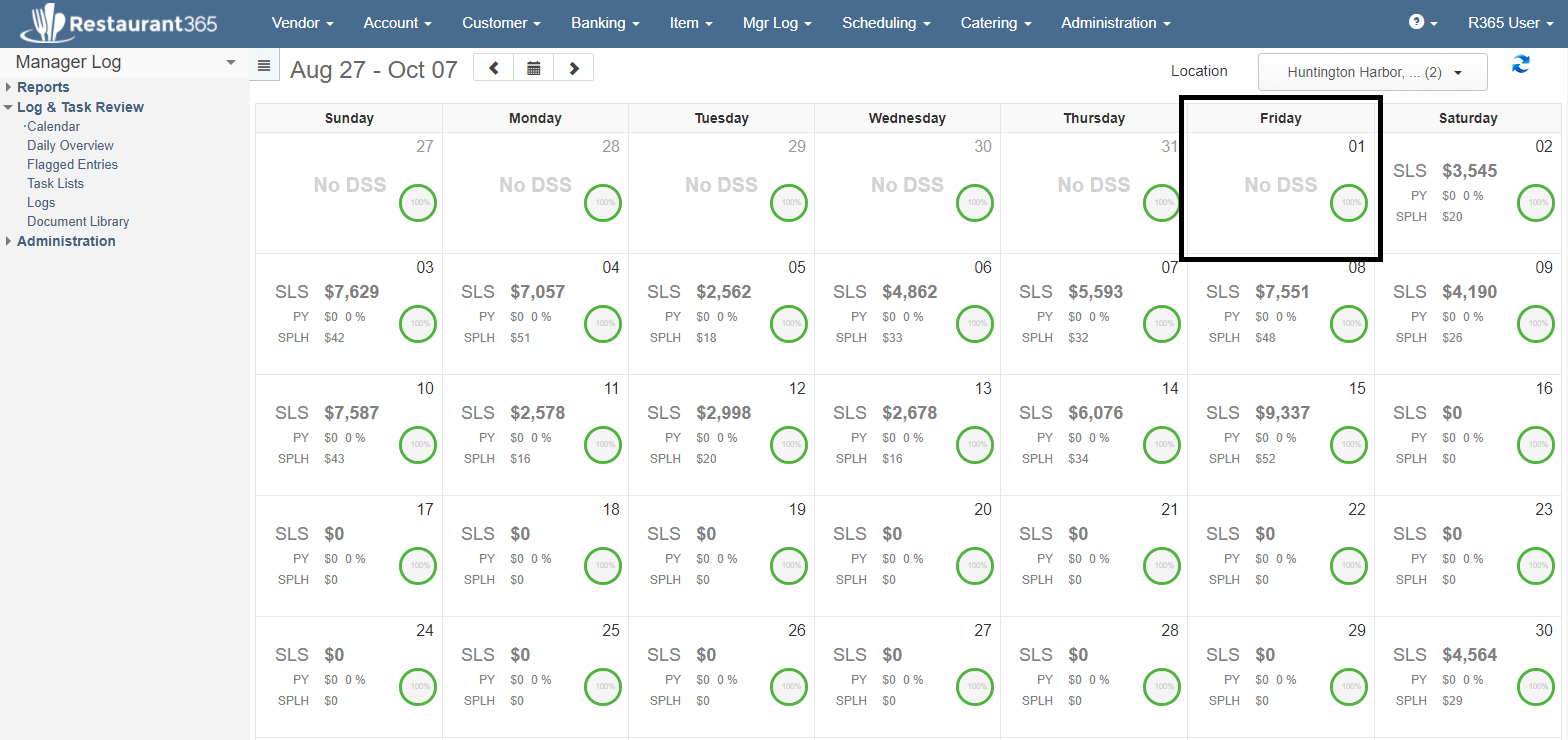
Before continuing, check the 'Missing DSS' tab to see if there are any missing DSSs for the date range selected. This tab, along with the Manager Log Calendar View, provides a quick check to ensure that no DSS is missed.

DSS tab
If the DSS has any issues, including unmapped POS Accounts, or unassigned Paid Outs and House Accounts, a warning will appear in the Alert column. Any DSS with the exclamation icon cannot be approved until the warning is cleared. For these DSSs the Approve checkbox will remain greyed out until the warning disappears and the issue is resolved.
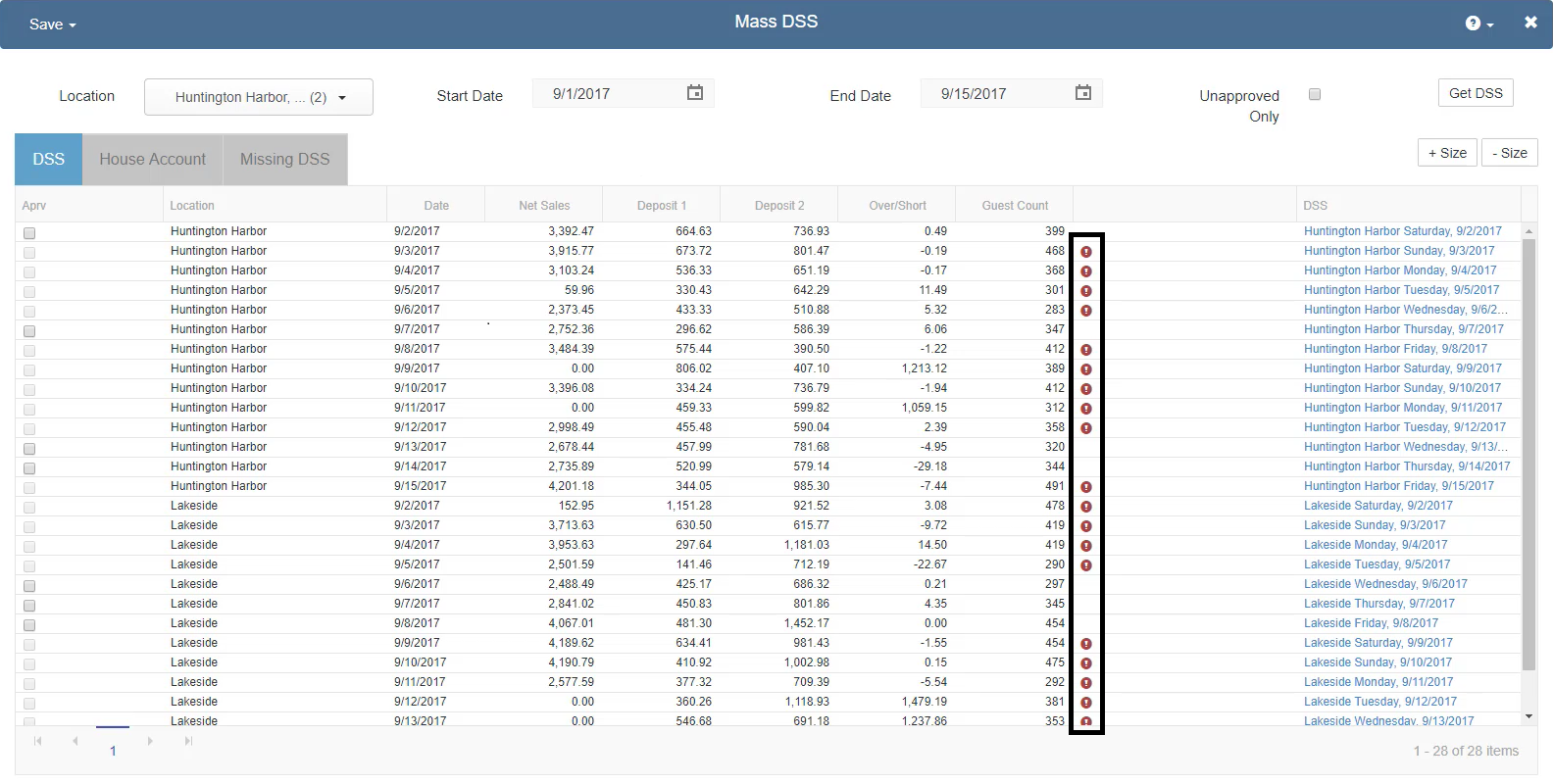
The only fields that you can edit in the DSS grid are the Approved Checkbox, and each deposit field. The remaining fields are provided to aid in your review.
To fix any issues, you can open the DSS in a popup by clicking the link in the DSS column. Make the updates within the popup, then make sure to save before closing.
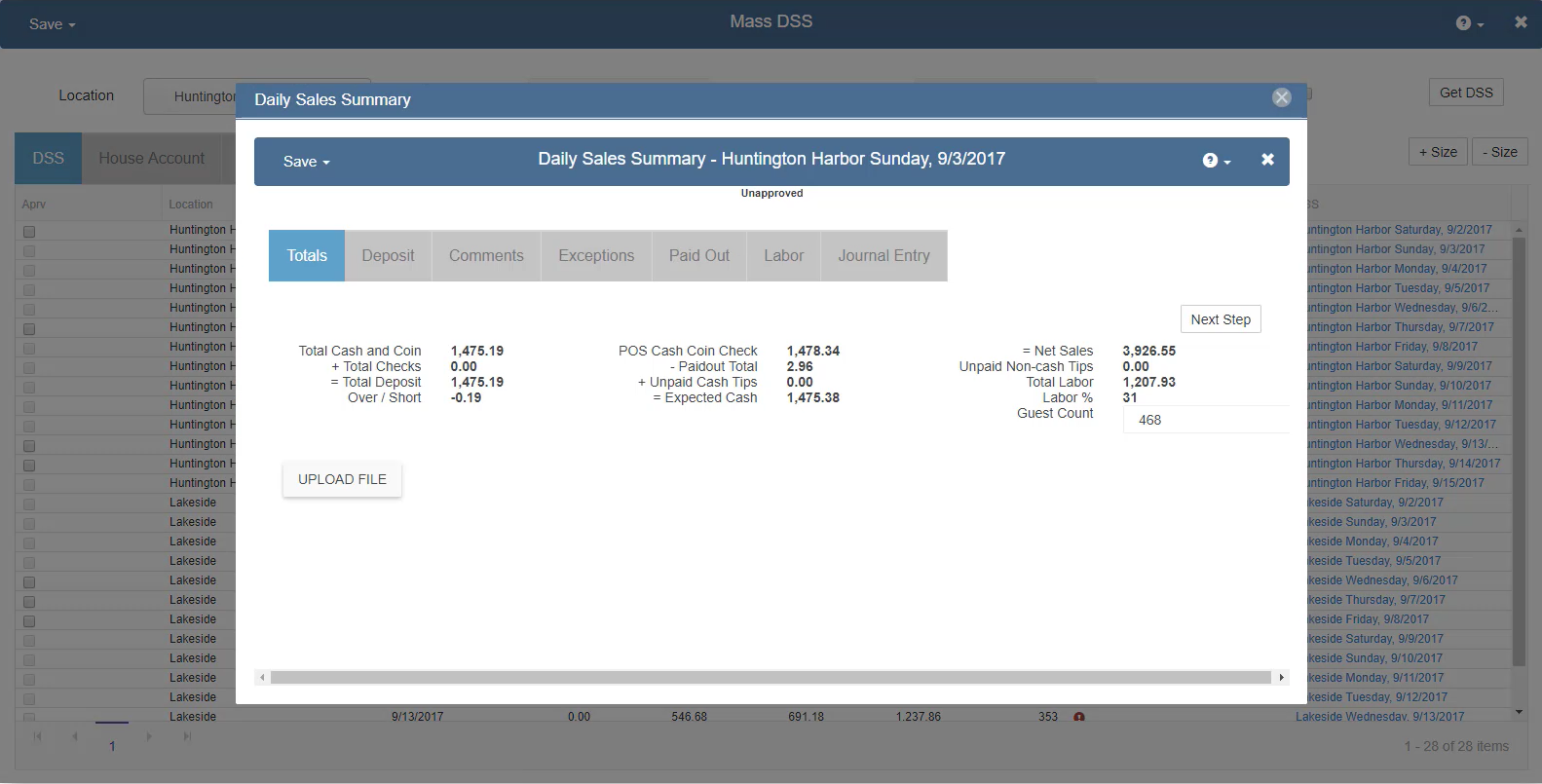
If the alert isn't automatically cleared from the changes you just saved, click 'Get DSS' again to reload the DSS grid. If the alert still remains, the DSS likely requires additional attention.
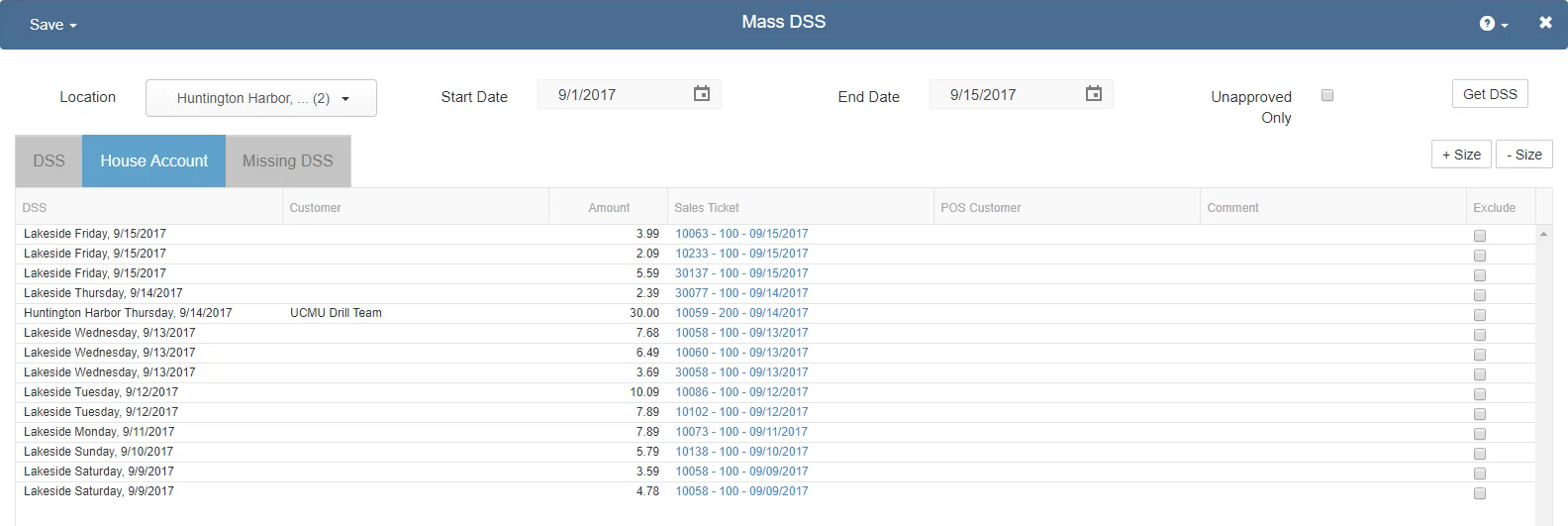
House Account tab
All House Account transactions will be listed for review here. If the only issue preventing the Approval of a DSS is an unassigned House Account, you don't need to open the full DSS record as you can assign Customers or exclude sales tickets using the 'House Account' tab. Click in the Customer column to select and assign the AR Customer, or check the 'Exclude' checkbox to remove this sales ticket from the 'Uninvoiced House Accounts' list.
Approving DSSs
- Review each column in the DSS Grid
- Update the Deposit 1 and Deposit 2 values if necessary
- Resolve any remaining issues (such as unassigned House Accounts, or Paid Outs)
- Check the 'Aprv' checkbox to Approve the DSS
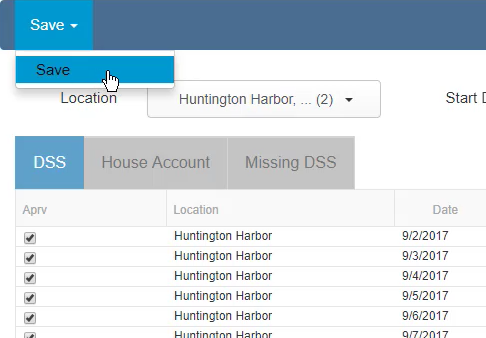
Continue this process for each DSS in the grid, checking the 'Approved' checkbox for each record that is ready for Approval. When complete, use the Save menu to finalize your approvals and post your Sales and Labor to the General Ledger.