Related Support Center Articles
| Purchased Item Record | AP Invoice Form |
| Inventory Master Template |
Overview
When you have reviewed each Lesson in this Course, you'll be ready to create your Purchased Items with the assistance of your Ops Specialist.
Note: Before creating any records on your own, make sure you have consulted with your Ops Specialist. R365 Ops Specialists are committed to your success and they will help you through the inventory setup process. If they've given you the green light to proceed, use one of the following methods to create your inventory:
Manual Creation
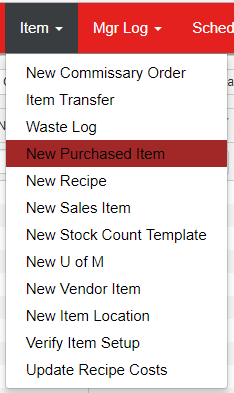
Hover over the Item menu in the top ribbon and select 'New Purchased Item'. This will open the Purchased Item record form in a new tab where you can complete and save the record.
Quick-Add on the AP Invoice Form
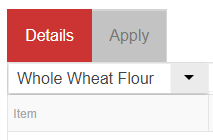
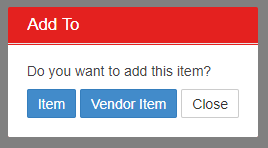
When manually entering an AP Invoice, if a Purchased Item name that doesn't exist is entered into the Item Selector and the user hits tab or enter, the quick-add prompt will appear asking if the User would like to add a new Item or Vendor Item.
Clicking 'Item' will open the Purchased Item Record form in a popup above the AP Invoice where the User can complete the form and save the record.
Via Template
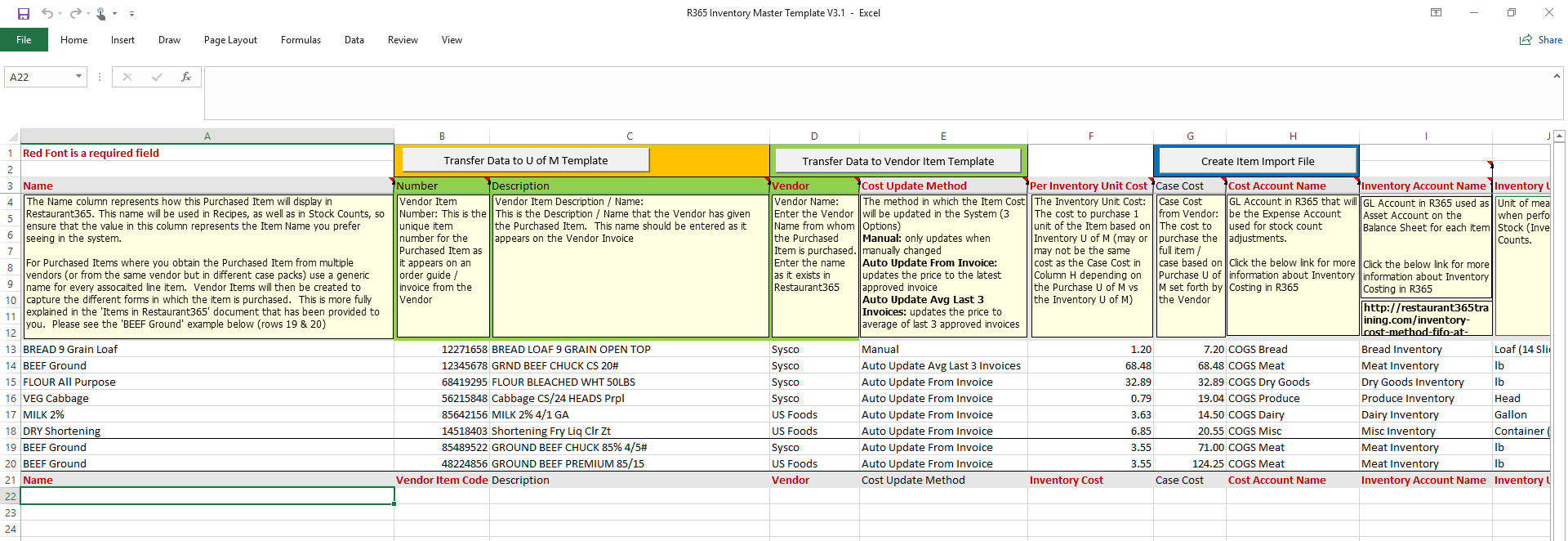
The most efficient way to create Purchased Items during initial setup is using the Inventory Template and the Import Tool. Your Ops Specialist will provide you with the most recent version of the template along with instructions specific to your needs.
When completed, the template can be imported, and you'll be one step closer to realizing the full potential of your inventory data across AP, Stock Counts, and Actual vs. Theoretical reporting.